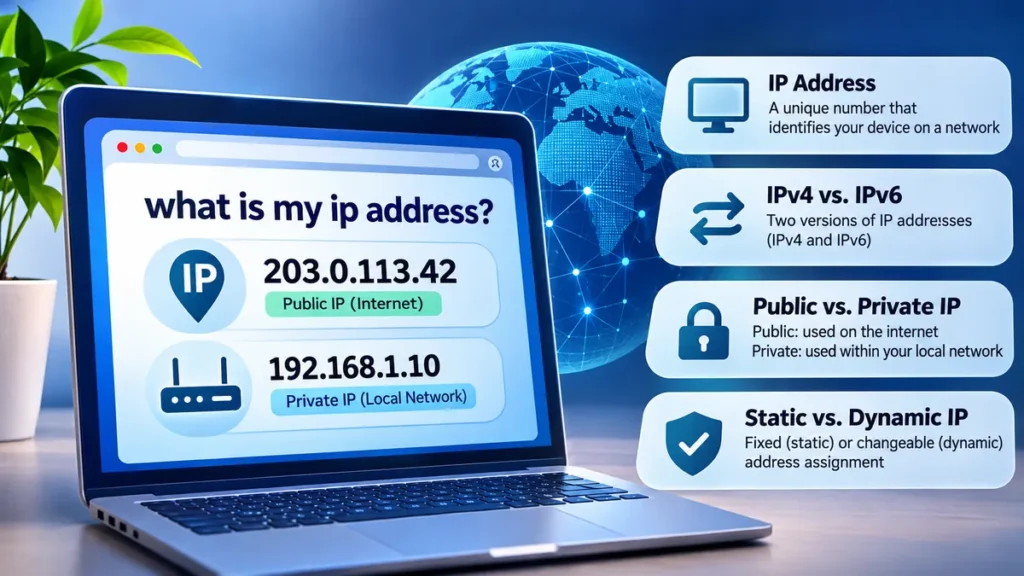
Every time you visit a website, stream a video, or connect to an online service, your device uses an IP address to communicate across a network. But where can you find that address, and what does it reveal about you?
If you’ve searched for “what is my ip address,” you’re probably looking for a quick way to identify your current internet address or understand how it works.
Your IP address (Internet Protocol address) is a numerical identifier used to send and receive data across networks. You can find your public IP address using an online IP checker or your router’s settings. Your private IP address is available in your device’s network settings. Both serve different purposes in internet communication.
what is my ip address and How Can I Find It?
The quickest way to find your public IP address is to visit a website that displays the address associated with your internet connection.
Popular options include:
These services detect the source IP address used to reach their servers.
You can also type “what is my ip address” into Google or another search engine. Some search engines display your public IP directly in the results.
Your public IP may look like one of these examples:
| IP version | Example |
|---|---|
| IPv4 | 203.0.113.42 |
| IPv6 | 2001:db8::42 |
These are documentation-only example addresses, not your actual IP address.
An important distinction: an online IP checker shows the public-facing address of your connection, which might belong to your router, internet provider, VPN server, or another network gateway.
Can I see my exact IP address here?
Your exact public IP address cannot be reliably determined from the text of this article. It must be detected from your active network connection.
An IP-checking website can display it because your browser connects directly to that website’s server.
If you are using a VPN or proxy, the website may display the VPN or proxy server’s address instead of the public address assigned by your internet service provider.
What Is an IP Address and How Does It Work?
An IP address is a fundamental component of internet communication.
IP stands for Internet Protocol, a set of networking rules that allows devices to exchange packets of information.
When you open a website, your device communicates with servers using IP addresses and other networking information.
A simplified sequence looks like this:
- You enter a website address into your browser.
- The Domain Name System (DNS) helps translate the domain into an IP address.
- Your device establishes a connection to the destination server.
- Data packets travel through routers and other network infrastructure.
- The server sends its response back through the network.
- Your browser receives the data and displays the website.
IP addresses help network equipment determine where packets should be delivered.
However, an IP address is not the same as a website domain, physical street address, or unique personal identity.
Why does every internet connection need an IP address?
Network communication requires addressing information so that devices know where to send data.
An IP address provides that addressing function at the internet layer.
A device can have multiple IP addresses, and a single public IP address can represent several devices connected through the same router.
For example, a home may contain a laptop, smartphone, television, and gaming console. Each can have a separate private IP address while sharing one public IPv4 address.
Public vs. Private IP Addresses: What’s the Difference?
One of the most common sources of confusion is the difference between a public IP address and a private IP address.
Illustration: Multiple devices use private IP addresses within a home network while sharing a public-facing connection.
| Feature | Public IP address | Private IP address |
|---|---|---|
| Purpose | Communication across the internet | Communication within a local network |
| Assigned by | ISP or network provider | Router or network administrator |
| Internet routable | Generally yes | No |
| Shared by devices | Often | Usually unique within the local network |
| Example | 203.0.113.42 | 192.168.1.10 |
| Visibility | Seen by external services | Normally stays within the local network |
What is a public IP address?
A public IP address is an internet-routable address used by a network connection to communicate with external services.
Internet service providers (ISPs), including broadband and mobile network operators, allocate or provide public addresses to customers.
Your public IP may change depending on your connection, provider, and network configuration.
Some providers also use carrier-grade NAT (CGNAT), meaning multiple customers share a public IPv4 address.
What is a private IP address?
A private IP address identifies a device inside a local network, such as your home Wi-Fi.
The Internet Assigned Numbers Authority (IANA) and Internet Engineering Task Force (IETF) define the commonly used private IPv4 ranges in RFC 1918.
| Private IPv4 range | Common use |
|---|---|
| 10.0.0.0 – 10.255.255.255 | Large private networks |
| 172.16.0.0 – 172.31.255.255 | Private organizational networks |
| 192.168.0.0 – 192.168.255.255 | Home and small-office networks |
Addresses such as 192.168.1.1 and 192.168.0.1 are commonly used as router gateway addresses.
Private addresses are not directly routed across the public internet.
How to Find Your IP Address on Any Device
Finding an IP address depends on whether you need your public internet address or your device’s private network address.
How to find your IP address on Windows 10 or 11
To view your private IP address through Windows Settings:
- Open Settings.
- Select Network & internet.
- Choose Wi-Fi or Ethernet.
- Open the properties of your connected network.
- Locate IPv4 address or IPv6 address.
You can also use Command Prompt.
Open Command Prompt and enter:
ipconfigThe command displays network adapter details, including IPv4 addresses, subnet masks, and default gateways.
To view more detailed configuration information, enter:
ipconfig /allThis provides additional details, including DNS servers, DHCP information, and network adapter identifiers.
How to find your IP address on macOS
On recent versions of macOS:
- Open System Settings.
- Select Network.
- Choose your active Wi-Fi or Ethernet connection.
- Open Details.
- Select TCP/IP to view the IP configuration.
You can also use Terminal.
For example:
ipconfig getifaddr en0This often returns the IPv4 address assigned to the primary Wi-Fi interface, although interface names vary between Macs.
How to find your IP address on Android
On many Android devices:
- Open Settings.
- Select Network & internet or Connections.
- Tap Wi-Fi.
- Select the connected network.
- Look under Network details or IP address.
The exact menu names vary depending on the manufacturer and Android version.
For your public IP address, use a browser-based IP checker.
How to find your IP address on iPhone or iPad
On iOS or iPadOS:
- Open Settings.
- Tap Wi-Fi.
- Find your connected network.
- Tap the information icon beside it.
- Look under IPv4 Address or IPv6 Address.
The displayed IPv4 address is generally the device’s local network address.
How to find your IP address on Linux
Linux users can inspect network interfaces through a terminal.
Run:
ip addrFor a shorter display of assigned addresses:
hostname -IThese commands show local addresses assigned to the machine, potentially including multiple network interfaces.
To check the public-facing IP using an external service:
curl -4 https://ifconfig.meThis requires an internet connection and the curl utility.
IPv4 vs. IPv6: Understanding the Two IP Address Types
There are two main versions of Internet Protocol currently used for internet addressing: IPv4 and IPv6.
What is an IPv4 address?
IPv4 stands for Internet Protocol version 4.
It uses 32-bit addresses, typically represented as four decimal numbers separated by periods.
Example:
192.0.2.25
Each number ranges from 0 to 255.
IPv4 provides approximately 4.3 billion possible address combinations, although not all are available for public internet use.
Because the internet has grown dramatically, IPv4 address availability is limited.
Technologies such as Network Address Translation (NAT) and CGNAT help conserve IPv4 addresses.
What is an IPv6 address?
IPv6 stands for Internet Protocol version 6.
It uses 128-bit addresses, allowing a vastly larger address space.
Example:
2001:db8:abcd::1
IPv6 addresses use hexadecimal notation and colons. Consecutive groups of zeros can be compressed using a double colon, once per address.
IPv6 was developed to address IPv4 limitations and support continued internet growth.
| Feature | IPv4 | IPv6 |
|---|---|---|
| Address length | 32 bits | 128 bits |
| Format | Dotted decimal | Colon-separated hexadecimal |
| Example | 192.0.2.25 | 2001:db8::1 |
| Address capacity | About 4.3 billion | Approximately 3.4 × 10³⁸ |
| Common configuration | DHCP or manual | SLAAC, DHCPv6, or manual |
| NAT requirement | Frequently used | Not inherently required |
Why do I have both IPv4 and IPv6 addresses?
Many modern networks support both protocols through a configuration called dual stack.
Your device may use IPv6 when connecting to one website and IPv4 when connecting to another.
This means different IP-checking services may display different address versions depending on how your connection reaches them.
Neither result is necessarily incorrect.
Static vs. Dynamic IP Addresses
IP addresses can also be classified according to how they are assigned and how frequently they change.
What is a static IP address?
A static IP address is configured to remain consistent over time.
Static addresses are commonly used for:
- Business networks that require predictable connectivity.
- Servers hosting websites or applications.
- Remote administration systems.
- Network devices requiring consistent addressing.
- Firewall rules that allow connections from specified IP addresses.
A static IP can simplify network management, but it does not automatically make a connection more secure.
What is a dynamic IP address?
A dynamic IP address is assigned automatically and may change over time.
Internet service providers commonly manage dynamic addresses using the Dynamic Host Configuration Protocol (DHCP) or other address-allocation mechanisms.
Your public IP might change when:
- Your router reconnects to your ISP.
- Your provider renews or changes an address assignment.
- You switch between Wi-Fi and mobile data.
- You connect to a different network.
- Your ISP reorganizes its network infrastructure.
Restarting a router does not guarantee that your public IP will change.
Many ISPs retain the same address across multiple reconnections.
What Does Your IP Address Reveal About You?
A public IP address can provide useful network information, but it does not normally reveal someone’s exact physical location or identity by itself.
IP lookup services use geolocation databases, network registration records, and other information to estimate where an address is used.
Typical information includes:
| Information | Can an IP lookup reveal it? |
|---|---|
| Country | Usually |
| Region or city | Approximately |
| Internet service provider | Often |
| Network organization | Usually |
| Autonomous System Number (ASN) | Usually |
| Exact home address | No, not reliably |
| Full name | No, not from the IP alone |
| Phone number | No |
| Complete browsing history | No |
Can someone find my location using my IP address?
An IP address can help estimate a geographic area, but it is not a GPS coordinate.
For example, an IP geolocation service might identify a connection as originating from a particular city even when the user is located elsewhere in the same region.
Mobile carriers, corporate networks, VPN services, and shared internet gateways can make IP-based geolocation less accurate.
An IP lookup may also identify the location of the ISP’s network infrastructure rather than the user’s device.
Can someone track me through my IP address?
An IP address can contribute to online tracking, particularly when combined with cookies, account identifiers, browser fingerprinting, or other data.
Websites can log source IP addresses for purposes such as security, analytics, troubleshooting, and fraud prevention.
However, a public IP address is not necessarily a permanent identifier for one person.
Several users may share the same public IPv4 address, while one user may have different addresses over time.
How to Hide or Change Your IP Address
There are several legitimate reasons to change the public IP address visible to websites, including privacy, network troubleshooting, and testing location-dependent services.
Use a virtual private network (VPN)
A Virtual Private Network routes selected internet traffic through an intermediary server.
When configured correctly, the destination website sees the VPN server’s public IP address rather than the original connection’s address.
A VPN can help:
- Reduce direct exposure of your ISP-assigned public IP to websites.
- Encrypt traffic between your device and the VPN endpoint.
- Protect traffic on certain untrusted networks.
- Change the apparent network location of your connection.
However, a VPN does not provide complete anonymity.
Websites may still recognize users through logged-in accounts, tracking cookies, or browser characteristics.
The VPN provider may also have access to certain connection metadata, depending on its architecture and policies.
Use a proxy server
A proxy acts as an intermediary between your application and another server.
For traffic passing through the proxy, the destination generally sees the proxy’s IP address.
Unlike a typical device-wide VPN, some proxies only affect a specific browser or application.
Not all proxies encrypt traffic, so their privacy and security characteristics vary.
Restart your router or change networks
If your ISP uses dynamic addressing, reconnecting your router may result in a different public IP.
You can also switch between home Wi-Fi and mobile data to use a different network connection.
Neither method guarantees anonymity or a permanent address change.
Use the Tor network
The Tor network routes supported application traffic through multiple relays to reduce the ability of observers to associate a user’s network address with their destination.
Websites generally see the Tor exit relay’s address.
Tor can provide stronger protections against certain tracking methods, but it may reduce browsing speed and does not prevent identification through account logins or unsafe browsing practices.
Why Is My IP Address Different From Yesterday?
If your public IP address has changed, that does not necessarily indicate a security problem.
Several ordinary network events can explain the difference.
Your ISP reassigned the address
Dynamic public IP addresses can change when a lease expires, a connection resets, or a provider updates its allocation.
You switched networks
Your mobile carrier and home broadband provider normally use different network infrastructure and public address pools.
Changing from Wi-Fi to cellular data can immediately change the public IP visible to websites.
Your VPN is active
If your VPN connects through another city or country, IP-checking websites may display that server’s address and estimated location.
Your connection uses carrier-grade NAT
CGNAT allows an ISP to share public IPv4 addresses among multiple subscribers.
A router’s WAN address may therefore differ from the address displayed by an external IP checker.
The shared address can also change without any obvious change to your home network.
Your device uses temporary IPv6 addresses
Some IPv6-enabled operating systems generate temporary addresses for outbound connections.
These can change periodically as part of privacy-address mechanisms described in RFC 8981.
Common IP Address Problems and How to Fix Them
Understanding IP configuration can help diagnose common internet connectivity problems.
IP address conflict
An IP address conflict occurs when multiple devices on the same network attempt to use the same address in a way that disrupts communication.
Symptoms may include intermittent connectivity, network warnings, or difficulty reaching local devices.
Possible solutions include checking manually configured addresses, renewing DHCP leases, and restarting affected devices.
IP address not assigned
If a device cannot obtain an appropriate network address, it may be unable to access local services or the internet.
On Windows, an automatically assigned IPv4 address beginning with 169.254 can indicate that the device did not obtain an expected IPv4 configuration from DHCP.
This range is used for IPv4 link-local addressing.
Check your router’s DHCP settings, network connection, and adapter configuration.
IP address blocked by a website
Websites and security services sometimes restrict traffic based on IP addresses.
A block may be triggered by automated requests, unusual traffic patterns, security rules, or a shared address’s previous activity.
If you receive an HTTP 403 Forbidden response, the IP address may be one factor, but authentication, permissions, firewall rules, and other restrictions can also cause the error.
Try checking the website’s access requirements and contacting its administrator if the block appears incorrect.
DNS works incorrectly despite a valid IP address
A device can have a valid IP address and still fail to open websites because of DNS problems.
For example, you might be able to reach an internet service by IP address but not by domain name.
Check your configured DNS resolvers, router settings, and network connectivity.
Cloudflare’s 1.1.1.1 and Google’s 8.8.8.8 are examples of public DNS resolver addresses, not tools that automatically reveal your own public IP.
How to Check Your Router’s IP Address
Your router commonly has at least two relevant addresses: a local gateway address and a WAN-facing address.
The local gateway is used by devices on your home network to communicate with the router.
Common examples include:
192.168.1.1192.168.0.110.0.0.1
To identify the correct gateway on Windows, run:
ipconfigLook for Default Gateway under your active network adapter.
You can then enter that address into a browser to access your router’s administration interface, provided the interface is enabled and accessible.
After signing in, look for sections such as Internet, WAN, or Connection Status.
The router may display its ISP-facing address.
If the WAN address belongs to a private range or the shared-address range 100.64.0.0/10, your connection may be behind an additional NAT layer.
This helps explain why the router’s WAN address can differ from the public IP displayed by an online checker.
Is It Safe to Share Your IP Address?
Sharing a public IP address is not automatically dangerous, but it is still worth treating it as potentially sensitive network information.
An IP address may reveal the approximate network location and service provider. It can also be used in network scanning or targeted traffic attempts.
The actual risk depends on the network’s configuration, exposed services, firewall rules, and other security protections.
For everyday protection:
- Keep your router’s firmware updated.
- Use strong, unique passwords for router administration.
- Disable unnecessary remote management features.
- Avoid exposing services directly to the internet without appropriate safeguards.
- Keep device firewalls enabled.
- Review port forwarding and UPnP settings.
- Use HTTPS connections for sensitive online activities.
A public IP address alone does not give someone access to your passwords, files, or devices.
Access generally requires an additional vulnerability, exposed service, compromised credential, or other weakness.
How Can I Check Whether My VPN Is Hiding My IP?
A simple comparison can help determine whether a VPN changes the address visible to external websites.
- Disconnect from your VPN.
- Open a trusted public IP checker.
- Record the displayed IPv4 and IPv6 addresses.
- Connect to your VPN.
- Refresh the IP checker.
- Compare the new addresses with the original results.
If the VPN is routing your browser traffic correctly, the displayed public IP should normally change to an address associated with the VPN connection.
Check IPv4 and IPv6 separately because some VPN configurations handle the protocols differently.
Also consider DNS leaks, WebRTC behavior, and split tunneling. A changed public IP does not by itself prove that every application is using the VPN.
What Is the Difference Between an IP Address, MAC Address, and DNS?
These three networking concepts serve different purposes.
| Term | Meaning | Main purpose |
|---|---|---|
| IP address | Internet Protocol address | Routes packets across IP networks |
| MAC address | Media Access Control address | Identifies network interfaces at the link layer |
| DNS | Domain Name System | Resolves domain names and other records |
| Default gateway | Network routing destination | Forwards traffic beyond the local network |
| Subnet mask or prefix | Network addressing parameter | Identifies the network portion of an address |
A MAC address typically operates within a local network segment and is not generally transmitted across the internet to every website you visit.
DNS makes domain names easier to use by resolving names such as example.com into appropriate network records.
IP addresses then help route communication to the destination.
These technologies work together but are not interchangeable.
Final Thoughts: what is my ip address?
If you’re asking “what is my ip address,” the quickest answer is to open a public IP-checking website and view the address associated with your current internet connection.
For your device’s private IP, check its network settings or use a command such as ipconfig on Windows.
Remember that your public and private addresses serve different purposes, and your connection may use both IPv4 and IPv6. Your public IP can reveal information about your network and approximate location, but it does not automatically disclose your identity or exact physical address.
Understanding these distinctions makes it easier to troubleshoot connectivity, interpret IP lookup results, and make informed decisions about online privacy and security.