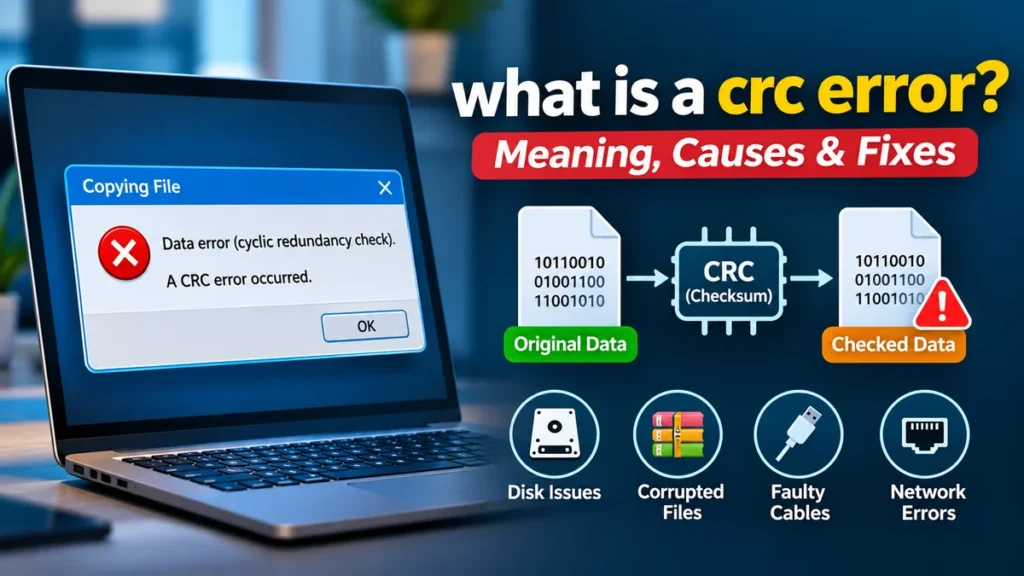
You are copying files to an external hard drive or extracting a ZIP archive when your computer suddenly displays a message: “Data error (cyclic redundancy check).” The operation stops, and you may wonder whether your files are damaged or your storage device is failing.
A CRC error is a warning that data failed an integrity check. Although it can indicate file corruption or hardware trouble, the message alone does not tell you exactly what went wrong.
A CRC (Cyclic Redundancy Check) error occurs when a calculated checksum does not match the expected checksum for stored or transmitted data. It indicates possible data corruption caused by damaged files, storage problems, interrupted transfers, or hardware faults. CRC detects errors but cannot automatically repair the original data.
Understanding where the error occurred is the first step toward resolving it without making the situation worse.
What Is a CRC Error and What Does It Mean?
CRC stands for Cyclic Redundancy Check, a mathematical technique used to detect accidental changes in digital information.
Computers use CRC checks to verify data integrity when reading storage devices, extracting compressed files, or transmitting information across networks.
A CRC error means that the information being checked does not match the integrity value calculated or stored earlier.
For example, imagine transferring a large video file from your computer to a USB flash drive. If some data changes during the transfer, a CRC check may detect the mismatch and report an error.
The National Institute of Standards and Technology (NIST) classifies CRC as a checksum mechanism for detecting accidental data changes, rather than a cryptographic hash. CSRC
What Does the CRC Error Message Look Like?
The exact wording depends on the operating system, application, or device.
Common messages include:
- “Data error (cyclic redundancy check)”
- “CRC failed”
- “CRC error detected”
- “Checksum mismatch”
- “Data Error” during archive extraction
- “The file is corrupt”
- “Cannot read from the source file or disk”
These messages are related, but they are not always interchangeable. For example, a checksum mismatch can involve algorithms other than CRC.
A CRC error during ZIP extraction usually points to an archive integrity problem. The same message while reading an external drive may indicate a storage or connection problem.
Is a CRC Error Serious?
It depends on where and how often the error occurs.
A single CRC error in a downloaded archive may be resolved by downloading the file again. Repeated errors when accessing different files on the same hard drive are more concerning.
A CRC error does not automatically mean that your hard drive has failed or that your data is permanently lost.
However, recurring disk-related CRC errors should be treated as a potential warning of hardware failure.
How Does Cyclic Redundancy Check Work?
CRC works by generating a short numerical value from a block of data using a mathematical algorithm.
That value is known as a CRC checksum or check value.
When the data is read or received, the system calculates the CRC again and compares it with the expected value.
If the values do not match, the integrity check fails.
Step-by-Step CRC Error Detection
The process generally follows five steps:
- Data preparation: A computer prepares a block of binary data for storage or transmission.
- CRC calculation: A mathematical algorithm calculates a check value from the data.
- Storage or transmission: The data and its associated CRC value are stored or transmitted.
- Verification: The receiving or reading system calculates the CRC using the same algorithm.
- Comparison: A mismatch indicates that the data failed the integrity check.
CRC calculations use polynomial arithmetic over binary values, often implemented efficiently through XOR operations.
The IEEE describes CRC as an error-detection mechanism widely used in communication systems and storage protocols. IEEE Technology Navigator
A Simple CRC Example
Suppose a ZIP archive contains a document with a stored CRC-32 value.
When the document is extracted, the extraction software calculates a new CRC-32 value from the decompressed contents.
| Original checksum | Calculated checksum | Result |
|---|---|---|
A1B2C3D4 | A1B2C3D4 | Match |
A1B2C3D4 | A1B2C3D5 | CRC mismatch |
These are illustrative hexadecimal values, not measurements from an actual file.
If the calculated value differs, the software knows that the integrity check failed.
A matching CRC provides useful evidence of integrity, but it is not absolute proof. Different data can occasionally produce the same CRC value, a phenomenon called a checksum collision.
CRC-16 vs. CRC-32 vs. CRC-64
Different systems use different CRC algorithms.
| CRC type | Check value size | Typical applications |
|---|---|---|
| CRC-8 | 8 bits | Embedded devices and small messages |
| CRC-16 | 16 bits | Industrial communication and device protocols |
| CRC-32 | 32 bits | ZIP archives, Ethernet, and file integrity |
| CRC-64 | 64 bits | Selected storage and data integrity applications |
The number represents the width of the CRC result.
Different algorithms with the same width can use different generator polynomials and produce different checksums.
CRC-32 is widely used, but a longer CRC is not automatically superior in every application. Error-detection performance also depends on the algorithm and the length and characteristics of the protected data.
What Causes a CRC Error?
CRC errors can originate from software, hardware, or data transmission problems.
Identifying the source matters because a solution that works for a corrupted download will not necessarily resolve a failing hard drive.
1. Corrupted or Incomplete Files
File corruption is a common reason for CRC errors.
A file may become damaged when:
- A download stops unexpectedly.
- A file transfer is interrupted.
- An application crashes while writing data.
- An archive is created incorrectly.
- A storage device disconnects during copying.
For example, a partially downloaded RAR archive may contain enough information to display its file list but fail when extracting the contents.
2. Bad Sectors on a Hard Drive
A bad sector is an area of a storage device that cannot reliably store or retrieve data.
Hard disk drives (HDDs) can develop unreadable sectors because of physical deterioration, manufacturing defects, or other hardware problems.
Solid-state drives (SSDs) can also experience unreadable data or failures, although their internal storage technology differs.
If a CRC error repeatedly appears when reading the same area of a disk, the device may have an underlying storage problem.
3. Faulty USB Cables or Connections
External storage devices rely on stable connections.
A damaged USB cable, unreliable port, or insufficient power supply can interrupt communication between the computer and storage device.
This may cause failed transfers, disconnections, or integrity errors.
A useful diagnostic step is to connect the device using another known-good cable and USB port.
4. Interrupted Network Transfers
CRC checks are used in communication technologies, including Ethernet.
Transmission errors can result from electrical interference, faulty cables, damaged network hardware, or other communication problems.
Ethernet frames use a frame check sequence (FCS) to detect certain transmission errors.
When a corrupted frame is detected, it is generally discarded rather than delivered as valid data.
Higher-level protocols may retransmit lost information, depending on the protocol and circumstances.
5. Faulty RAM or Unstable Hardware
Random access memory (RAM) temporarily holds data while applications process it.
If memory is faulty or a system is unstable because of overclocking, data may be altered during compression, decompression, or transfer operations.
The resulting CRC mismatch may appear to be a damaged file even when the original stored data is intact.
Memory-related corruption becomes more plausible when unrelated archives fail inconsistently or different applications experience unexplained crashes.
6. Software or File System Problems
Some errors arise from application bugs, incompatible archive handling, or damaged file system metadata.
For example, an outdated extraction program might not correctly process a particular archive format.
A file system problem can also interfere with accessing data, although not every file system error is specifically a CRC failure.
7. Incorrect Archive Passwords
Some encrypted ZIP archives may report CRC or data errors when the wrong password produces incorrectly decrypted content.
This is not necessarily evidence of physical corruption.
Checking the password and archive format is therefore useful before investigating the storage hardware.
How to Fix a CRC Error in Windows 11 or Windows 10
The safest troubleshooting approach depends on whether the error affects one file or an entire storage device.
Before attempting repairs, preserve important data. If a drive is repeatedly disconnecting, making unusual noises, or failing to read files, avoid intensive scans and unnecessary writes until you have assessed recovery options.
Step 1: Identify Where the Error Occurs
Start by identifying the affected operation.
| Where the error appears | Possible cause | First action |
|---|---|---|
| Downloaded ZIP or RAR file | Incomplete or corrupted download | Download a fresh copy |
| External HDD or SSD | Connection or drive problem | Check cable and drive health |
| USB flash drive | Damaged data or unreliable connection | Try another USB port |
| File copying | Source or destination read/write problem | Identify which device fails |
| Software installation | Corrupted installation package | Obtain a fresh installer |
| Multiple unrelated archives | Storage, memory, or system instability | Test hardware and software |
This distinction helps avoid unnecessary repair commands.
Step 2: Restart the Computer and Check Connections
A restart may resolve a temporary software or device communication problem.
After restarting:
- Reconnect the affected external device.
- Try another USB port.
- Replace the cable with a known-good one.
- Avoid unpowered USB hubs when testing an external drive.
- Check whether the same error occurs.
If the device works consistently through another cable, the original connection may have been responsible.
If errors continue, investigate the storage device itself.
Step 3: Check the Disk Without Immediately Modifying It
Windows includes CHKDSK, a utility for checking file system consistency and identifying certain disk-related problems.
Open Command Prompt as administrator and enter:
chkdsk E:Replace E: with the correct drive letter.
This command checks the volume and reports problems without requesting repairs.
For a stable drive with a verified backup, Windows also supports:
chkdsk E: /fThe /f option attempts to fix file system errors.
Another option is:
chkdsk E: /rThe /r option attempts to locate bad sectors and recover readable information. It also includes the functionality of /f.
Important: Do not immediately run /f or /r on a failing drive containing irreplaceable files. Repair operations can modify file system structures, and intensive scanning may place additional stress on unstable hardware.
If the drive shows signs of physical failure, professional recovery or creating a sector-level image may be safer.
Step 4: Check the Drive’s SMART Health Information
Self-Monitoring, Analysis and Reporting Technology (SMART) provides diagnostic information about many HDDs and SSDs.
SMART attributes may reveal signs of deterioration, including:
- Reallocated sectors
- Pending sectors
- Uncorrectable errors
- Interface communication errors
- Excessive temperature
Tools such as CrystalDiskInfo and manufacturer-provided SSD utilities can help inspect available SMART information.
However, not every external USB enclosure exposes SMART data, and a healthy-looking SMART report does not guarantee that a drive is reliable.
Repeated CRC errors combined with deteriorating SMART indicators warrant particular caution.
Step 5: Try a Fresh Copy of the File
If the error affects a downloaded file rather than an entire disk, obtain another copy from the original trusted source.
For example, if a 2 GB ZIP archive fails during extraction, download it again and save the new copy to a different healthy location.
If the publisher supplies a SHA-256 checksum, compare it with the downloaded file.
In Windows PowerShell, use:
Get-FileHash "C:\Downloads\archive.zip" -Algorithm SHA256Compare the resulting value with the checksum published by the source.
A matching SHA-256 value strongly supports that the downloaded file matches the publisher’s reference copy, assuming the reference itself is trustworthy.
Step 6: Test the System Memory
If several unrelated files repeatedly fail integrity checks, consider checking RAM.
Windows includes a memory diagnostic utility.
- Press
Windows + R. - Type
mdsched.exe. - Press Enter.
- Select the restart-and-check option.
- Allow the memory test to complete.
Save your work before restarting.
Windows Memory Diagnostic can identify some memory faults, but passing the test does not rule out every RAM problem.
For persistent instability, a more comprehensive memory test may be appropriate.
How to Fix a CRC Error in ZIP, RAR, and 7-Zip Files
Compressed archives are among the most common places users encounter CRC errors.
Programs such as 7-Zip and WinRAR check file integrity during extraction.
When the extracted contents do not match the expected checksum, the application may display a CRC failure.
Test the Archive Before Extracting It
In 7-Zip, open the archive and select the Test option.
Alternatively, the 7-Zip command-line utility supports:
7z t "archive.zip"The command checks the archive and reports detected errors.
If the test fails, the next step is to determine whether the archive is incomplete, corrupted, incorrectly decrypted, or affected by the storage device.
The official 7-Zip documentation distinguishes between damaged archive contents and damaged archive headers. These conditions can require different recovery methods. 7-zip.org
Check All Parts of a Split Archive
Large archives are sometimes divided into multiple files, such as:
backup.part1.rar, backup.part2.rar, and backup.part3.rar.
If a part is missing or damaged, extraction may fail.
Confirm that every part is present, complete, and stored in the same directory before attempting extraction.
Try Another Extraction Program
An alternative extraction program may help when the issue involves compatibility or an unsupported compression method.
However, changing extraction software cannot recreate missing data.
If two reliable tools report the same integrity failure, the archive itself becomes a stronger suspect.
Can a Corrupted ZIP or RAR File Be Repaired?
Sometimes.
WinRAR includes archive repair functionality, and specialized recovery techniques may retrieve unaffected data from certain damaged archives.
Recovery depends on the archive format, compression settings, location of the corruption, and availability of recovery records or other copies.
A damaged solid 7z archive can be especially difficult to recover because multiple files may depend on the same compressed data stream.
The official 7-Zip recovery documentation makes clear that some CRC-related corruption is difficult to repair. sevenzip.sourceforge.io
Always preserve the original archive before attempting repair.
What Is a CRC Error on a Hard Drive or SSD?
A CRC error on a hard drive or SSD means that an operation involving the device encountered an integrity verification failure.
The problem may involve the stored data, the device’s internal hardware, the connection, or the software processing the information.
The error does not identify the failed component by itself.
Internal vs. External Drive CRC Errors
An internal SATA hard drive can experience communication errors because of a damaged SATA data cable, loose connection, or failing controller.
An external USB drive introduces other possible causes, including a faulty USB cable, enclosure, bridge controller, or power supply.
An NVMe SSD uses a different interface, so SATA-specific troubleshooting does not apply directly.
For an external drive, testing another cable and port is often a sensible early step.
For a drive that repeatedly reports unreadable sectors, connection changes alone are unlikely to solve the underlying problem.
Does a CRC Error Mean the Hard Drive Is Dying?
Not necessarily.
One CRC error caused by a loose cable does not establish that the drive is failing.
However, repeated read failures, disappearing files, unexpected disconnections, and worsening SMART indicators may signal a serious hardware problem.
Mechanical clicking or grinding noises from an HDD are particularly concerning.
If the data is valuable, prioritize preservation rather than repeated repair attempts.
Can a CRC Error Cause Data Loss?
Yes.
CRC itself is an error-detection mechanism, not the cause of data loss.
The underlying corruption or hardware failure may make files unreadable, interrupt transfers, or prevent access to entire directories.
Sometimes the data remains recoverable from a backup, a healthy original source, or the affected storage device.
Other times, physical damage or missing information makes complete recovery impossible.
CRC Errors in Networks and Data Communication
CRC is not limited to files and storage devices.
It is also used in communication technologies where detecting accidental changes to transmitted information is essential.
Ethernet CRC Errors
Ethernet uses a 32-bit frame check sequence to help detect corrupted frames.
Network equipment may record counters such as CRC errors, FCS errors, or input errors.
An increasing CRC error counter on a switch port can indicate a physical-layer or link-related problem.
Possible causes include:
- Damaged Ethernet cables
- Faulty connectors
- Electrical interference
- Defective network interfaces
- Hardware or transceiver problems
A useful diagnostic method is to check whether the error counter continues increasing, then test the cable, port, and connected equipment.
A small historical counter value does not necessarily indicate an active fault.
Wi-Fi and Wireless Communication
Wireless networks also use frame integrity checks.
Radio interference, weak signals, and competing transmissions can contribute to corrupted frames.
Wireless protocols often use acknowledgments and retransmission mechanisms to handle unsuccessful delivery.
CRC helps detect errors, while other protocol mechanisms handle recovery.
CRC in Industrial and Embedded Systems
CRC checks are common in embedded electronics and industrial communication.
Examples include selected implementations of:
- Modbus communication
- Controller area network (CAN) systems
- Microcontroller communication
- Serial communication protocols
- Sensor and control systems
The exact CRC algorithm varies by protocol.
A CRC-16 implementation in one system is not necessarily compatible with another CRC-16 implementation because parameters such as the generator polynomial and initialization value can differ.
CRC vs. Checksum vs. Hash: What Is the Difference?
CRC, checksums, and cryptographic hashes are all used to assess information, but they are designed for different purposes.
| Feature | CRC | Simple checksum | Cryptographic hash |
|---|---|---|---|
| Main purpose | Detect accidental data errors | Detect certain data changes | Verify integrity and support security applications |
| Typical examples | CRC-16, CRC-32 | Additive checksum | SHA-256, SHA-512 |
| Computational cost | Low | Usually very low | Generally higher |
| Detects accidental corruption | Yes | Yes, with varying strength | Yes |
| Resists deliberate manipulation | No | No | Designed to resist relevant attacks |
| Automatically repairs data | No | No | No |
CRC is particularly effective for detecting many common transmission error patterns, including burst errors, when an appropriate polynomial is selected.
However, CRC is not a security mechanism.
An attacker who deliberately changes a file can calculate a new CRC value for the modified contents.
Cryptographic hash functions such as SHA-256 are designed to make finding matching hashes for different content computationally difficult.
Neither CRC nor SHA-256 can reconstruct missing file contents from the checksum alone.
Does CRC Detect Every Error?
No.
CRC detects many accidental errors, but some patterns can produce the same check value.
Its effectiveness depends on factors including:
- CRC width
- Generator polynomial
- Message length
- Error pattern
- Algorithm parameters
For a well-behaved 32-bit CRC, a randomly distributed corruption pattern has an approximate 1-in-4.3-billion chance of going undetected under the usual uniform-syndrome assumption.
That figure is not a universal guarantee for every data corruption scenario.
CRC also cannot establish that a file came from a trusted source.
How to Prevent CRC Errors and Data Corruption
Not every CRC error can be prevented, but good storage and transfer practices can reduce the risk.
Maintain Reliable Backups
Keep important files in more than one location.
A practical approach is the 3-2-1 backup strategy: maintain three copies of important data, use two storage media or systems, and keep one copy off-site.
For critical information, also maintain an offline or otherwise protected backup where possible.
Test restoration periodically. A backup that cannot be restored provides little protection.
Safely Disconnect Storage Devices
Avoid disconnecting USB drives while files are being written.
Use the operating system’s appropriate eject procedure and wait for transfers to finish.
This reduces the chance of interrupted writes and file system corruption.
Monitor Storage Health
Check SMART indicators periodically, particularly on drives storing valuable information.
Watch for increasing read errors, unstable performance, unexpected disconnections, and repeated file access failures.
Replace unreliable storage devices before a complete failure whenever possible.
Keep Systems Stable
Unstable RAM, overheating, inadequate power, and aggressive overclocking can contribute to data corruption.
Maintain adequate cooling and use reliable hardware configurations.
Keep storage drivers, firmware, and extraction software updated when updates are appropriate for your system.
Back up important information before firmware changes.
Verify Important File Transfers
For critical downloads and backups, use a trusted checksum when one is available.
SHA-256 is useful for comparing files against a published reference value.
For large backups, verification should confirm that the stored data can actually be read and restored, not merely that the copying application reported success.
When Should You Stop Troubleshooting and Seek Data Recovery?
Some situations require more caution than ordinary software troubleshooting.
Consider professional data recovery when:
- A drive contains irreplaceable files and repeatedly fails to read them.
- An HDD makes unusual clicking or grinding noises.
- The device disconnects frequently or is no longer consistently detected.
- Multiple sectors are unreadable.
- Previous recovery attempts have made access worse.
- A storage device has suffered physical damage.
Avoid formatting, initializing, or repeatedly scanning a failing drive merely to clear the error message.
Formatting can destroy file system information and complicate recovery. It does not repair physical damage.
For important data, preserving the original device and minimizing further writes is often more valuable than attempting numerous software fixes.
Final Thoughts: what is a crc error and What Should You Do Next?
A CRC error means that stored or transmitted data failed an integrity check. It can occur in compressed archives, hard drives, SSDs, USB devices, and network communication.
The most effective response depends on the source of the problem.
For a downloaded ZIP or RAR file, start by testing the archive and obtaining a fresh copy. For an external drive, check the connection and assess storage health. For repeated disk errors, protect important data before attempting repairs.
Remember that CRC detects corruption; it does not automatically correct it.
The next step is to identify exactly where the error occurs, preserve any valuable files, and troubleshoot the most likely cause without risking additional data loss.