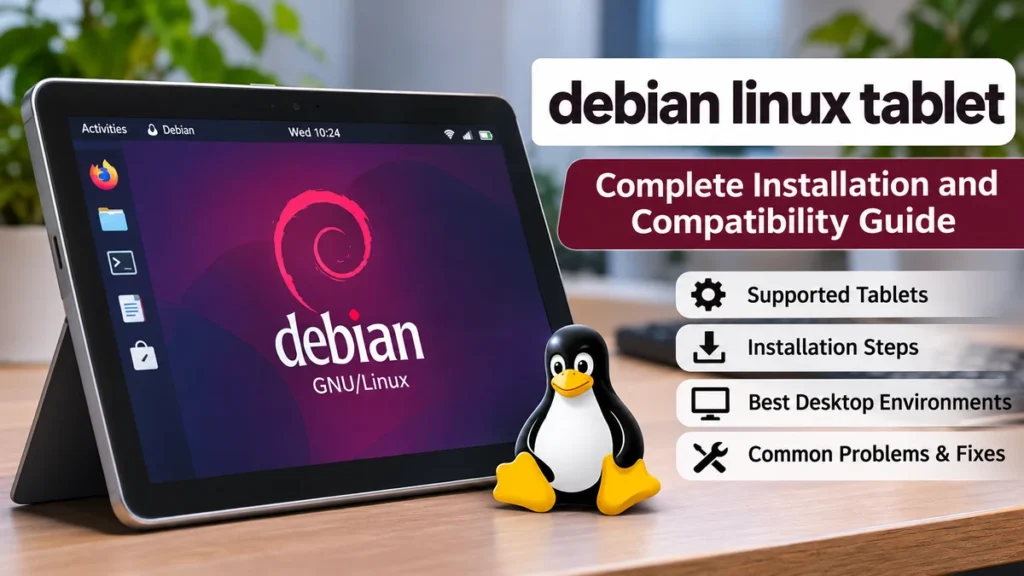
Tablets are usually associated with Android, iPadOS, or Windows. However, Linux offers another option for users who want greater privacy, software freedom, customization, and a traditional computing experience on a portable device.
A debian linux tablet is a touchscreen device running Debian GNU/Linux or a Debian-based mobile operating system such as Mobian. It provides access to Linux applications, desktop environments, package management tools, and development utilities. Hardware compatibility, processor architecture, touchscreen drivers, and bootloader restrictions determine whether Debian can run successfully.
Unlike conventional mobile operating systems, Debian gives users considerable control over how their devices operate. Getting everything working, however, requires careful hardware selection.
What Is a debian linux tablet?
A Debian tablet is a portable touchscreen computer that uses the Debian operating system instead of a conventional mobile platform.
Debian is a free and open-source Linux distribution known for its stability, extensive software repositories, community development, and security infrastructure.
The Debian Project does not manufacture its own tablets. Instead, users install Debian or a compatible derivative on supported hardware.
A Linux tablet can provide many features normally associated with desktop computers, including:
- Full Linux desktop environments
- Terminal access and command-line utilities
- Advanced file management
- Open-source productivity applications
- Programming and development tools
- Customizable system settings
- External keyboard and mouse support
- Software installation through APT
The experience depends heavily on the hardware and graphical interface being used. A tablet with excellent Linux kernel support may operate reliably, while an unsupported device could experience problems with essential components.
Debian vs. Mobian
Mobian is a Debian-based operating system designed specifically for mobile devices, including smartphones and tablets.
It combines Debian’s software ecosystem with mobile interfaces and device-specific modifications that make touchscreen computing more practical. Debian Wiki+1
| Feature | Debian | Mobian |
|---|---|---|
| Primary purpose | General-purpose computing | Mobile computing |
| Touchscreen interface | Desktop-dependent | Mobile-oriented |
| Installation | Standard or device-specific | Device-specific images |
| Package manager | APT | APT |
| Desktop options | GNOME, KDE, XFCE and others | Phosh and Plasma Mobile |
| Hardware support | Broad general-purpose support | Selected mobile devices |
| Best suited for | Compatible PCs and tablets | Supported Linux mobile hardware |
Standard Debian is generally suitable for compatible Intel and AMD tablets, while Mobian can provide a more practical starting point for supported ARM devices.
Which Tablets Are Compatible With Debian Linux?
Not every tablet supports Linux installation. Processor architecture, firmware, bootloader accessibility, and device drivers must all be considered.
PINE64 PineTab
The original PineTab is an open-source tablet designed to accommodate alternative operating systems.
Its hardware includes:
- Allwinner A64 processor
- ARM Cortex-A53 CPU architecture
- 2GB LPDDR3 RAM
- 10-inch capacitive touchscreen
- Mali graphics processor
- Bootable microSD storage
- Optional keyboard and trackpad
The PineTab supports experimental Linux distributions, including Mobian, and can boot from a compatible microSD card. However, hardware support varies between operating system releases. PINE64+1
PINE64 PineTab2
The PineTab2 is a newer Linux-oriented tablet built around the Rockchip RK3566 processor.
It offers more capable hardware than the original PineTab, but Debian-based software support remains incomplete.
The Debian Wiki identifies limitations involving wireless connectivity, graphics, internal storage, and power management. These issues can affect everyday reliability.
The PineTab2 is therefore better suited to experimentation and Linux development than users requiring a completely reliable everyday tablet. Debian Wiki
Microsoft Surface Tablets
Selected Microsoft Surface Pro and Surface Go models can run Debian because they use conventional PC hardware and UEFI firmware.
Depending on the model, additional Linux Surface kernel components may improve support for:
- Touchscreen input
- Surface Pen
- Battery monitoring
- Keyboard covers
- Power management
- Device sensors
The Debian community also documents Mobian installation on compatible x86-based Surface tablets. Debian Wiki
Newer ARM-based Surface models require different compatibility checks.
Android Tablets
Installing Debian directly on an Android tablet is significantly more complicated.
Most Android devices depend on manufacturer-specific kernels, proprietary drivers, device trees, and restricted bootloaders.
Even when the bootloader can be unlocked, Linux may not support every hardware component.
Applications such as Termux provide an alternative approach by allowing users to run a Debian userspace within Android without replacing the original operating system.
Linux Tablet Compatibility Comparison
| Tablet | Architecture | Debian installation potential | Difficulty |
|---|---|---|---|
| PineTab | ARM64 | Device-specific images | Moderate |
| PineTab2 | ARM64 | Available with limitations | Advanced |
| Surface Pro (Intel models) | x86-64 | Model-dependent | Moderate |
| Surface Go (Intel models) | x86-64 | Model-dependent | Moderate |
| Android tablets | ARM64 | Highly device-dependent | Advanced |
| Generic Windows tablets | x86-64 | Hardware-dependent | Moderate |
| PineTab-V | RISC-V | Experimental or incomplete | Advanced |
| Apple iPad | ARM64 | No generally supported native installation | Very difficult |
The exact model matters more than the manufacturer. Two tablets from the same product family can have completely different Linux compatibility.
Hardware Requirements for Running Debian on a Tablet
Debian can operate on relatively modest hardware, but graphical applications and modern websites require additional computing resources.
The following specifications are practical recommendations rather than official universal minimum requirements.
| Component | Basic configuration | Recommended configuration |
|---|---|---|
| Processor | Compatible 64-bit CPU | Modern quad-core or better |
| RAM | 2GB | 4–8GB |
| Storage | 16GB | 64GB or more |
| Display | 720p | 1080p or higher |
| Connectivity | Supported Wi-Fi adapter | Wi-Fi and Bluetooth |
| Graphics | Compatible Linux driver | Hardware acceleration |
| Boot system | Supported bootloader | Accessible UEFI or supported U-Boot |
ARM64 vs. x86-64 Architecture
Understanding processor architecture is essential before downloading Debian.
ARM64 processors are common in mobile devices because of their power efficiency. Linux-oriented tablets such as the PineTab use ARM-based hardware.
x86-64 processors are commonly found in Intel and AMD computers, including many Windows tablets.
Debian uses the arm64 architecture designation for compatible 64-bit ARM processors and amd64 for conventional 64-bit Intel and AMD processors.
An ARM64 processor alone does not guarantee compatibility with a generic Debian image. Mobile devices often require a specific kernel, bootloader configuration, and hardware description.
Bootloader and Firmware Requirements
The bootloader initializes the tablet and starts the operating system.
Linux-oriented ARM tablets commonly use U-Boot, while many Windows tablets rely on UEFI firmware.
A locked bootloader can prevent Debian from starting altogether. Other devices may require additional firmware or model-specific installation procedures.
Before installing Debian, verify that the device supports the intended boot method and that a recovery procedure is available.
Best Desktop Environments for a debian linux tablet
A desktop environment determines how users interact with applications, settings, notifications, and files.
Traditional desktop interfaces are not always comfortable on smaller touchscreen displays.
GNOME
GNOME is a practical option for touchscreen devices with adequate processing power and memory.
Its interface includes large application icons, an integrated search function, workspaces, gesture support, and an on-screen keyboard.
GNOME is particularly suitable for tablets that alternate between touchscreen and keyboard-based operation.
KDE Plasma
KDE Plasma provides extensive customization options.
Users can modify panels, application launchers, themes, display scaling, and interface behavior.
Its traditional desktop interface works particularly well on larger screens and tablets with detachable keyboards.
Phosh
Phosh is a mobile graphical shell originally developed by Purism.
It provides a compact application launcher, touchscreen-friendly controls, notifications, and a mobile-oriented interface built around Linux technologies.
Mobian commonly uses Phosh for its mobile device images.
Plasma Mobile
Plasma Mobile brings the KDE ecosystem to mobile hardware.
It includes touch-oriented navigation, application switching, mobile settings, and adaptive interface components.
It is an alternative for users who prefer a smartphone-style graphical environment.
XFCE
XFCE is a lightweight desktop environment that can work well on devices with limited RAM.
It consumes relatively few system resources, although traditional menus and desktop controls may require customization for comfortable touchscreen use.
| Desktop environment | Touchscreen usability | Resource usage | Ideal use |
|---|---|---|---|
| GNOME | Very good | Moderate to high | Modern touchscreen tablets |
| KDE Plasma | Good | Moderate | Customizable desktop computing |
| Phosh | Very good | Moderate | Mobile Linux devices |
| Plasma Mobile | Very good | Moderate | Mobile-oriented interfaces |
| XFCE | Basic to moderate | Low | Older or low-powered tablets |
| LXQt | Basic | Low | Resource-constrained devices |
Wayland-based environments are often preferable for modern touchscreen usage because they can provide effective support for touch events, gestures, and display scaling. Actual functionality still depends on the hardware and software configuration.
How to Install Debian Linux on a Tablet
The installation process differs between conventional PC-compatible tablets and Linux-oriented ARM devices.
Always create a complete backup before changing partitions, unlocking bootloaders, or flashing operating system images.
Step 1: Identify Your Tablet Hardware
Determine the following information:
- Manufacturer and exact model number
- Processor architecture
- Available RAM and storage
- Bootloader or UEFI configuration
- Touchscreen controller
- Wireless network chipset
- Availability of Linux drivers
Consult the Debian hardware compatibility documentation and device-specific community resources.
Do not assume that another tablet with a similar name uses identical hardware.
Step 2: Download the Correct Operating System Image
For conventional PC-compatible tablets, download an appropriate image from the official Debian website.
For supported mobile devices, use the Mobian image repository.
Choose an image that matches both your processor architecture and device requirements.
Verify the downloaded image using its published checksums and digital signatures before installation.
Step 3: Create Bootable Installation Media
Depending on your tablet, you may need a USB flash drive or microSD card.
Common image-writing utilities include Rufus, GNOME Disks, balenaEtcher, and bmaptool.
Writing an operating system image erases the selected destination. Check the drive carefully before beginning.
Step 4: Configure the Boot Settings
On a compatible x86-based tablet, enter the UEFI settings and enable external booting if necessary.
Select the USB drive as the boot device.
Standard Debian supports Secure Boot on compatible systems, although some custom kernels and Mobian configurations may require it to be disabled.
ARM-based tablets generally require their own device-specific boot procedures.
Step 5: Test Hardware Compatibility
Whenever a live operating system image is available, test the hardware before replacing the existing operating system.
Check whether the following functions work:
- Touchscreen and display
- Wi-Fi and Bluetooth
- Audio and speakers
- Screen brightness
- Automatic rotation
- Keyboard and trackpad
- Battery charging
- Suspend and resume
A successful boot does not necessarily mean every hardware component is supported.
Step 6: Install Debian
On a compatible PC-style tablet, start the Debian installer and follow the configuration prompts.
Select the language, keyboard layout, network settings, user account, storage partitions, and preferred desktop environment.
A USB keyboard and mouse can be useful if touchscreen input does not function during installation.
Installing Mobian on ARM Tablets
Devices such as the PineTab may support booting Mobian directly from microSD storage.
The general procedure involves downloading a compatible image, verifying its authenticity, writing it to a microSD card, inserting the card, and starting the tablet.
Some devices require specific U-Boot, Tow-Boot, or SPI firmware configurations. Installation procedures for internal eMMC storage also vary.
The PineTab and PineTab2 have different hardware and boot requirements, so their images and instructions should not be treated as interchangeable. Debian Wiki+1
Step 7: Update the Operating System
After installation, open the terminal and refresh the package repositories:
sudo apt update
sudo apt upgrade
These commands update package information and install available software upgrades.
Change any default login credentials immediately, install necessary firmware from trusted repositories, and configure the desktop interface according to your screen size.
Common debian linux tablet Problems and Solutions
Installing Linux on a tablet introduces challenges that are less common on conventional desktop computers.
Touchscreen Not Working
A malfunctioning touchscreen may indicate a missing kernel driver, unsupported hardware controller, or firmware issue.
Use the following command to inspect detected input devices:
sudo libinput list-devicesThe command requires the libinput-tools package.
If the touchscreen is not detected, investigate kernel support for the specific touchscreen controller before attempting configuration changes.
Wi-Fi Not Connecting
Wireless connectivity problems frequently occur when the required firmware is missing or the wireless chipset lacks stable Linux support.
Use these commands to inspect connected hardware and network interfaces:
lspci
lsusb
ip link
Identify the chipset before installing firmware. Not every wireless adapter uses the same driver.
Screen Rotation Problems
Automatic screen rotation requires a supported orientation sensor and compatible desktop software.
The iio-sensor-proxy package can help supported desktop environments receive orientation information.
sudo apt install iio-sensor-proxyInstalling the package will not resolve rotation problems if the underlying sensor lacks kernel support.
On-Screen Keyboard Not Appearing
GNOME, Phosh, and Plasma Mobile provide different methods of displaying virtual keyboards.
Check the accessibility, input, and touchscreen settings within your selected desktop environment.
Traditional environments such as XFCE may require a separate virtual keyboard application.
Poor Battery Life
Linux tablets do not always achieve the same battery life as their original operating systems.
Possible causes include inefficient graphics drivers, unsupported low-power states, background services, and incomplete suspend functionality.
Power management utilities such as PowerTOP can help investigate energy consumption.
Reducing screen brightness, limiting background applications, and maintaining an appropriate kernel version may also improve efficiency.
Tablet Freezing or Failing to Wake
Problems when resuming from sleep can result from unsupported power management features or unstable device drivers.
Review system logs using:
journalctl -b -p warningCheck the device’s compatibility documentation before repeatedly attempting suspend or hibernation on experimental hardware.
What Can You Do With a Debian Linux Tablet?
A compatible Linux tablet can function as a portable workstation rather than simply a mobile entertainment device.
| Activity | Compatible applications or tools |
|---|---|
| Web browsing | Firefox ESR, Chromium |
| Document editing | LibreOffice |
| Programming | Python, Vim, Geany |
| File management | Nautilus, Dolphin, Thunar |
| Media playback | VLC, MPV |
| Image editing | GIMP, Krita |
| Thunderbird, Geary | |
| Remote administration | OpenSSH |
| System monitoring | htop, GNOME System Monitor |
| Reading documents | Evince, Okular |
Programming and Software Development
Debian provides access to programming languages, compilers, text editors, Git repositories, and command-line utilities.
For example, Python and Git can be installed through APT:
sudo apt install python3 gitWith an external keyboard, a compatible tablet can be useful for writing scripts, managing websites, editing source code, and connecting to remote development environments.
Remote Server Management
Linux tablets are particularly useful for administrators who need portable access to servers.
OpenSSH allows users to connect securely to remote Linux computers.
ssh username@server-addressUsers can perform maintenance, transfer files, manage applications, and monitor server performance without carrying a full-sized laptop.
Can Debian Run Android Applications?
Debian does not run Android APK files natively.
Compatibility projects such as Waydroid can provide an Android environment on supported Linux systems.
However, Waydroid requires compatible kernel features, graphics support, and an appropriate graphical session.
Some Android applications, particularly banking services and applications requiring device certification, may not function correctly.
Running Debian Inside Android
Users who cannot install Debian directly on their tablet can explore Termux and PRoot-Distro.
These tools allow a Debian userspace to operate within Android without requiring a complete operating system replacement.
This approach is useful for learning Linux commands, running development tools, and experimenting with software packages.
It does not replace the Android kernel or provide unrestricted access to the tablet’s hardware.
Debian Tablet vs. Android, Windows and Other Linux Distributions
Different tablet operating systems prioritize different features.
Debian emphasizes software freedom, system control, and general-purpose computing, while mainstream mobile platforms prioritize application compatibility and integrated hardware support.
| Feature | Debian | Android | Windows | iPadOS |
|---|---|---|---|---|
| Open-source system | Mostly | Partially | No | No |
| System customization | Extensive | Moderate | Extensive | Limited |
| Native Linux tools | Yes | Limited | Through WSL | Limited |
| Mobile app ecosystem | Limited | Extensive | Limited | Extensive |
| Desktop applications | Extensive | Limited | Extensive | Platform-specific |
| Hardware optimization | Device-dependent | Generally strong | Model-dependent | Strong |
| Installation flexibility | Hardware-dependent | Limited | Hardware-dependent | Very limited |
Debian vs. Ubuntu Touch
Ubuntu Touch, maintained by the UBports community, focuses on mobile computing and touchscreen interaction.
Debian generally provides a more conventional Linux package management experience, while Ubuntu Touch prioritizes its mobile interface and supported application ecosystem.
Debian vs. postmarketOS
postmarketOS is based on Alpine Linux and focuses on bringing Linux to mobile hardware.
It supports multiple graphical environments, including Phosh and Plasma Mobile.
Debian offers a different package ecosystem and uses APT rather than Alpine’s APK package manager.
The better option depends primarily on which distribution supports the tablet’s hardware most effectively.
Debian vs. Fedora and Arch Linux
Fedora generally offers newer Linux technologies and software packages, while Arch Linux uses a rolling-release development model.
Debian Stable prioritizes consistency and predictable software maintenance.
For tablet users, newer kernels can sometimes provide improved hardware support, but newer software does not automatically guarantee better device reliability.
Advantages and Disadvantages of Debian on Tablets
Debian provides capabilities that are difficult to reproduce on restricted mobile platforms. Nevertheless, it requires users to accept certain compromises.
| Advantages | Disadvantages |
|---|---|
| Free and open-source operating system | Limited tablet hardware compatibility |
| Extensive software repositories | Potential touchscreen driver issues |
| Advanced system customization | Mobile applications may be unavailable |
| Native programming tools | Battery life may be shorter |
| Greater control over privacy | Installation can be complicated |
| Multiple desktop environments | Cameras and sensors may not work |
| Traditional desktop applications | Some devices have unstable drivers |
| No mandatory vendor account | Requires technical troubleshooting |
Is Debian Linux Safe and Secure?
Debian provides security updates, signed software repositories, user permission controls, and established package maintenance processes.
However, security also depends on how the system is configured and maintained.
Use trusted repositories, install security updates regularly, replace default passwords, avoid unnecessary root access, and consider storage encryption where the device supports it.
Experimental device kernels may also have different security maintenance arrangements from standard Debian installations.
Is Debian Suitable for Everyday Tablet Use?
Debian can be suitable for everyday browsing, writing, programming, document management, and remote administration when the hardware is properly supported.
It may be less suitable for users who depend on proprietary mobile applications, reliable video calling, commercial streaming services, advanced stylus functionality, or fully optimized battery performance.
The most useful approach is to evaluate the tablet against your actual daily requirements rather than relying solely on whether Linux successfully boots.
Conclusion
A debian linux tablet combines the flexibility of an open-source desktop operating system with the portability of touchscreen hardware. It provides access to extensive software repositories, programming tools, customizable interfaces, and advanced system management features.
Linux-oriented devices such as the PineTab and selected Intel-based Windows tablets provide potential starting points. Mobian offers an alternative for users who prefer a mobile-oriented Debian experience, while GNOME, KDE Plasma, and XFCE serve different desktop computing requirements.
Successful installation depends on processor architecture, bootloader accessibility, kernel drivers, and hardware compatibility. Before replacing an existing operating system, consult the device-specific documentation, create a complete backup, and test essential hardware functions using external boot media whenever possible.