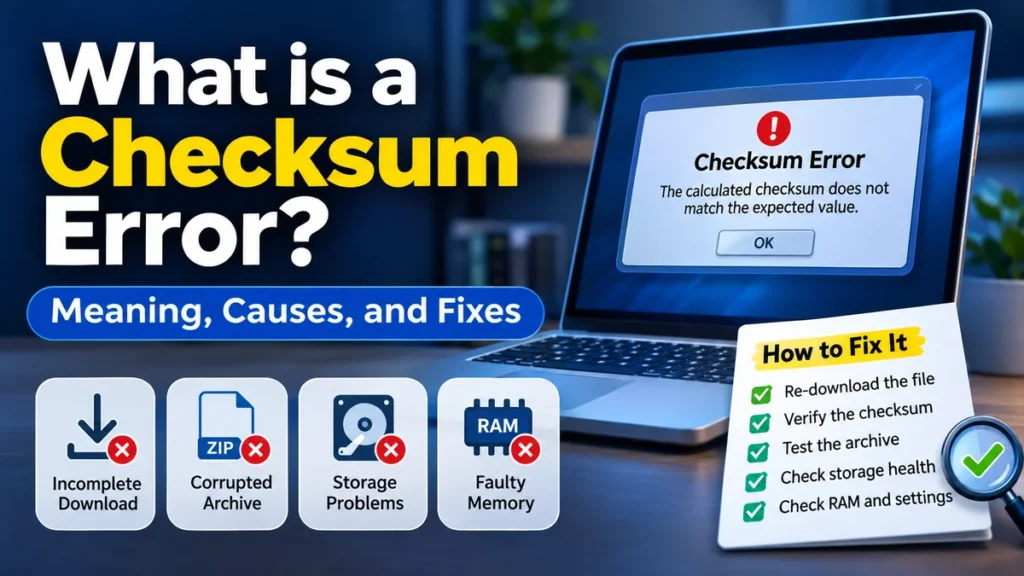
You download a large file, try to extract an archive, or start your computer, and suddenly a checksum error appears. Does that mean your data is corrupted, your hardware is failing, or something went wrong during the transfer?
The answer depends on where the error occurs.
A checksum error happens when a calculated value used to verify data integrity does not match the expected value. It usually indicates that data has changed, become corrupted, or failed verification during storage, transmission, or processing. Common causes include incomplete downloads, damaged files, faulty storage, memory errors, and incorrect firmware settings.
Understanding how checksums work makes these errors easier to troubleshoot without risking important files or replacing hardware unnecessarily.
What Is a Checksum Error and How Does It Work?
A checksum is a value calculated from a collection of data using a mathematical algorithm. Computers use it to help determine whether information remains unchanged.
When a file is created, transmitted, or stored, a checksum can be calculated and saved or shared separately. Later, the receiving system calculates another checksum from the data.
If both values match, the integrity check passes. If they differ, the system reports a checksum mismatch or verification failure.
How checksum verification works
Consider a software file downloaded from an official website.
- The software publisher calculates a checksum for the original file.
- The publisher makes that checksum available to users.
- You download the file to your computer.
- A checksum utility calculates the hash of your downloaded copy.
- You compare the calculated value with the publisher’s reference value.
If the values differ, the downloaded file is not identical to the file represented by the reference checksum.
For example, suppose the expected checksum is:
A1B2C3D4
But the calculated checksum is:
A1B2C3D5
Even though the difference appears small, verification fails.
These short values are illustrative. Real SHA-256 checksums contain 64 hexadecimal characters.
Does a checksum error always mean a file is corrupted?
Not necessarily.
A mismatch indicates that the data being checked does not match the expected data. Possible explanations include an incomplete download, an outdated reference checksum, selecting the wrong file, or actual data corruption.
A checksum mismatch does not automatically identify the cause.
It also does not prove that malware is present. However, when verifying software against a trusted publisher’s checksum, an unexpected mismatch is a reason to avoid running the file until the discrepancy is resolved.
Common Causes of Checksum Errors
Checksum errors can appear in downloads, compressed archives, network communications, storage devices, and computer firmware.
The underlying problem is usually an inconsistency between the expected and calculated values.
1. Corrupted or incomplete downloads
Interrupted downloads are a common cause of checksum mismatches.
A connection failure, incomplete transfer, disk write problem, or defective cached copy may leave the downloaded file different from the original.
Typical symptoms include:
- An installer that fails verification
- A downloaded ISO image with the wrong SHA-256 hash
- An archive that cannot be extracted
- A file that repeatedly fails integrity checks
Modern transfer protocols often detect transmission errors automatically, but they cannot prevent every possible problem involving local storage, interrupted transfers, or incorrect files.
2. Damaged ZIP, RAR, or 7z archives
Compressed archives commonly contain integrity-checking information.
For example, ZIP archives generally use CRC-32 values to help detect damage to stored file data.
When an extraction utility calculates a different CRC value, it may display a message such as:
CRC failed
or
Checksum error in the encrypted file
Possible causes include damaged archive data, an incomplete multipart archive, or an incorrect password for certain encrypted archive formats.
3. Storage device problems
Hard disk drives, solid-state drives, USB flash drives, and memory cards can experience read or write failures.
These failures may result from defective storage media, controller problems, unstable connections, or other hardware issues.
A checksum error involving stored files may indicate that the data read from the device differs from the expected content.
Repeated errors across multiple unrelated files deserve closer investigation.
4. Faulty RAM or unstable hardware
Computer memory can also contribute to data integrity problems.
Defective RAM, unstable overclocking, excessive heat, or power instability may cause incorrect data to be processed or written.
Symptoms may include recurring archive extraction failures, application crashes, installation errors, or inconsistent results when calculating the same file hash.
However, a checksum error alone is not sufficient evidence of defective memory.
5. Network transmission errors
Data moving through a network can be altered by transmission errors.
Networking technologies use different integrity-checking mechanisms to detect problems.
For example, Ethernet frames use a frame check sequence based on CRC-32, while TCP uses a checksum covering its header and data, along with a pseudo-header.
A failed check generally causes the affected packet or frame to be discarded rather than delivered as valid data.
6. BIOS or CMOS checksum problems
A CMOS checksum error during computer startup is different from a corrupted download.
Traditionally, CMOS memory stores firmware configuration information, and firmware can use a checksum to detect unexpected changes.
A message such as CMOS Checksum Bad may appear when configuration data is invalid or has been reset.
Possible causes include a depleted CMOS battery, firmware configuration changes, interrupted firmware updates, or motherboard problems.
Modern UEFI systems may use different configuration storage and validation methods, but similar startup warnings still occur.
Different Types of Checksums and Integrity Checks
Not every checksum algorithm provides the same level of protection.
Some methods are designed to detect accidental transmission errors efficiently. Others are cryptographic hash functions intended to make undetected modification extremely difficult.
| Method | Typical use | Main characteristic |
|---|---|---|
| CRC-32 | ZIP files, Ethernet, storage formats | Efficient detection of accidental data errors |
| MD5 | Legacy file verification | Fast, but cryptographically broken |
| SHA-1 | Older software and version-control systems | Cryptographically weakened |
| SHA-256 | Software downloads and file integrity | Strong cryptographic hash |
| SHA-512 | File integrity and cryptographic applications | Strong cryptographic hash with a longer output |
| Internet checksum | IPv4, TCP, UDP | Lightweight error detection |
CRC errors versus checksum errors
A cyclic redundancy check, or CRC, is a specific type of error-detection mechanism.
CRC algorithms treat data as binary values and perform polynomial calculations to generate a check value.
They are particularly effective at detecting many common accidental bit errors, including burst errors.
A CRC error is therefore a kind of integrity-check failure, but not every checksum error involves CRC.
MD5 versus SHA-256
MD5 produces a 128-bit hash, while SHA-256 produces a 256-bit hash.
MD5 remains useful in some legacy systems for detecting accidental changes, but it is unsuitable when protection against deliberate manipulation is required.
SHA-256 offers substantially stronger collision resistance and is generally the better choice for modern file integrity verification.
One distinction matters: a matching SHA-256 hash confirms consistency with the reference hash, but it does not establish that the reference itself is trustworthy.
For security-sensitive downloads, obtain the expected hash from an authenticated publisher source. Digital signatures can provide stronger evidence of authenticity.
How to Fix a Checksum Error Step by Step
The correct solution depends on whether the error involves a downloaded file, compressed archive, operating system, storage device, or motherboard firmware.
Start with the least disruptive checks before attempting repairs.
Step 1: Identify where the error appears
Read the complete error message and determine when it occurs.
| Error message | Likely problem | First action |
|---|---|---|
| Checksum mismatch | File differs from reference | Recalculate and compare hashes |
| CRC failed | Archive data or extraction issue | Test the archive |
| CMOS checksum bad | Firmware configuration problem | Check BIOS/UEFI settings |
| Invalid checksum | Data verification failure | Verify the source and algorithm |
| Header checksum error | Damaged or invalid header | Obtain a clean copy |
| TCP checksum error | Packet integrity issue | Investigate network capture and configuration |
The message identifies the type of verification that failed, but further testing is usually required to determine the underlying cause.
Step 2: Download the file again
If the problem involves a downloaded installer, document, or archive, obtain a fresh copy from the original trusted source.
Before downloading again:
- Delete or rename the incomplete downloaded copy.
- Confirm that sufficient storage space is available.
- Use a stable internet connection.
- Avoid interrupting the transfer.
- Compare the new file’s checksum with the publisher’s reference value.
If the fresh download passes verification, the original copy was likely incomplete, incorrect, or altered.
If multiple downloads fail, investigate the source file, download process, storage device, and local system.
Step 3: Verify the file checksum manually
Manual checksum verification helps determine whether the file matches a known reference.
The process differs slightly between operating systems.
Check a checksum on Windows using PowerShell
Windows includes the Get-FileHash command.
Open PowerShell and run:
Get-FileHash "C:\Downloads\example.zip" -Algorithm SHA256PowerShell calculates the SHA-256 hash and displays the result.
Compare that value with the checksum published by the software provider.
You can also use Windows Command Prompt:
certutil -hashfile "C:\Downloads\example.zip" SHA256Both commands calculate a file hash without modifying the file. Microsoft documents these methods for verifying downloaded software. GitHub+1
Check a checksum on Linux
Open a terminal and enter:
sha256sum example.zipThe terminal displays a hexadecimal SHA-256 value followed by the filename.
If the publisher provides a compatible checksum file, you can verify it using:
sha256sum -c SHA256SUMSMake sure the checksum file contains the correct filename and expected hash.
Check a checksum on macOS
Open Terminal and run:
shasum -a 256 example.zipCompare the resulting value with the trusted reference checksum.
The algorithms must match. A SHA-256 result cannot be compared directly with an MD5 or SHA-512 result.
Step 4: Test damaged archives
If the error occurs while extracting a ZIP or 7z file, test the archive before attempting recovery.
With 7-Zip installed, open the application, select the archive, and choose Test.
Alternatively, run:
7z t example.zipA successful test indicates that the archive passed the integrity checks performed by the utility.
If the test reports a CRC or data error, check whether the archive is incomplete, whether all multipart sections are present, and whether the correct password was entered.
The official 7-Zip documentation explains that recovery depends on the type and extent of damage. Some damaged archives may be partially recoverable, but complete restoration is not guaranteed. 7-zip.org+1
Step 5: Check storage health
If checksum failures affect multiple unrelated files, investigate the storage device.
On Windows, you can begin with a read-only file-system scan:
chkdsk C: /scanThis checks supported NTFS volumes for file-system problems without requesting an immediate repair.
For broader diagnosis, inspect SMART health information using a reputable disk monitoring utility or the manufacturer’s diagnostic software.
Look for indications such as read errors, media errors, reallocated sectors on applicable drives, or repeated device disconnections.
Before running repairs, make a backup of important files. File-system repair tools cannot necessarily restore corrupted file contents, and attempting repairs on a failing drive can complicate recovery.
Step 6: Test RAM and system stability
If files repeatedly become corrupted during extraction, compilation, or installation, memory instability may be involved.
Use Windows Memory Diagnostic or a dedicated memory-testing utility.
For a more controlled test, temporarily restore CPU and RAM settings to supported defaults, including disabling unstable overclocking configurations.
If errors disappear after restoring stable settings, hardware instability becomes a stronger possibility.
Do not assume that RAM is defective based on one failed checksum comparison.
How to Fix a CMOS Checksum Error During Startup
A CMOS checksum warning usually appears before the operating system loads.
It may be accompanied by incorrect system time, reset firmware settings, or a prompt to enter BIOS/UEFI setup.
Check the date and time
Restart the computer and enter firmware setup using the key specified by the manufacturer, commonly Delete, F2, or another model-specific key.
Check whether the date and time are correct.
If they repeatedly reset after the computer loses power, the CMOS or real-time clock battery may be depleted.
Restore appropriate firmware settings
If the problem began after changing firmware settings, restore the appropriate defaults or revert the specific changes.
Be careful with storage-controller modes, Secure Boot, TPM, and boot settings. Changing these values can prevent an existing operating system from starting or trigger recovery-key requests.
Record the original configuration before making changes.
Inspect the CMOS battery
Many desktop motherboards use a CR2032 coin-cell battery to maintain real-time clock operation and certain settings.
If the system clock repeatedly resets, replacing the battery may resolve the issue.
However, not all laptops use an easily replaceable CR2032 battery. Some use different battery designs or integrated components.
Follow the manufacturer’s service instructions and disconnect power before accessing internal components.
Consider a firmware update only when appropriate
A BIOS or UEFI update may address a known firmware defect, but it should not be the first troubleshooting step for an isolated checksum warning.
Use only firmware intended for the exact motherboard or computer model.
An interrupted or incorrect firmware update can leave a system unable to boot.
If the warning persists after checking the battery and configuration, professional hardware diagnosis may be appropriate.
What Is a Checksum Error in Networking?
Network checksums detect certain changes to data as it travels between devices.
However, checksum behavior depends on the protocol and the layer of the network stack.
TCP and UDP checksum errors
TCP includes a checksum that helps detect corruption in its header and payload.
UDP also includes checksum functionality, although requirements differ between IPv4 and IPv6.
When a receiving system detects an invalid checksum, it normally discards the affected packet.
For TCP, missing data may be retransmitted through the protocol’s reliability mechanisms.
For UDP, recovery depends on the application because UDP does not provide built-in retransmission.
Why Wireshark sometimes shows checksum errors
A packet capture may display an incorrect TCP or UDP checksum even when the network connection works normally.
One possible explanation is checksum offloading.
With transmit checksum offloading, the operating system may capture an outgoing packet before the network interface card calculates and inserts the final checksum.
As a result, the packet capture can show an incomplete checksum that does not represent what was actually transmitted.
Before treating these warnings as evidence of network corruption, determine whether offloading is enabled and whether the affected traffic is inbound or outbound.
How to investigate recurring network checksum failures
Begin by checking whether applications are actually experiencing connection failures, retransmissions, or packet loss.
Then inspect network interface statistics, cable connections, device drivers, and switch-port error counters.
If errors are persistent, capture traffic at a different point in the network to determine whether the problem exists on the wire or only in the local capture.
A checksum warning in a packet analyzer is not, by itself, proof of a damaged cable or defective network adapter.
Can a Checksum Error Cause Data Loss?
A checksum error does not necessarily cause data loss. It is usually a warning that a verification check failed.
However, the underlying issue may involve damaged or missing information.
The impact depends on the affected system.
For example, a corrupted software download can usually be replaced with a fresh copy. A damaged archive containing the only copy of important documents presents a much greater risk.
Similarly, repeated checksum failures on a storage device may indicate a developing problem that threatens additional data.
Can corrupted files be repaired?
Sometimes, but successful repair depends on the file format and the nature of the damage.
Certain archive formats support recovery records or other redundancy mechanisms. Some applications can reconstruct portions of damaged documents or media files.
A checksum alone cannot restore missing data.
Checksums are primarily detection mechanisms, not automatic error-correction systems.
Error-correcting codes, redundant storage, backups, and recovery records are separate technologies that may provide ways to reconstruct information.
If a file is irreplaceable, preserve the original before attempting recovery.
How to Prevent Checksum Errors
Although no system can eliminate every possible data integrity failure, several practices reduce the likelihood and impact of errors.
Verify important downloads
When downloading operating system images, firmware, or other important software, compare their cryptographic hashes with trusted publisher values.
For security-sensitive software, also verify digital signatures when available.
Maintain reliable backups
Use multiple backup copies and periodically test whether they can be restored.
The 3-2-1 backup approach is a useful starting point: keep three copies of important data, on two types of storage, with one copy stored separately.
A backup is only useful if its contents remain readable.
Monitor storage devices
Watch for repeated read failures, unexplained file corruption, and hardware health warnings.
Replace failing storage devices before they become unusable.
Avoid unstable hardware configurations
Unstable memory settings, overheating, power interruptions, and defective components can contribute to data errors.
Keep firmware and drivers appropriately maintained, and use reliable power protection where needed.
Use integrity verification for backups and transfers
For important datasets, calculate and retain SHA-256 hashes or use backup software with built-in verification.
This helps identify unexpected changes during copying, archiving, or long-term storage.
Remember that a matching checksum provides evidence of consistency, not a guarantee that the underlying data was correct when the checksum was originally generated.
What Is a Checksum Error Compared With Other File Errors?
Checksum errors are often confused with file corruption messages, disk errors, and authentication failures.
These problems can overlap, but they are not identical.
| Error type | Meaning | Typical response |
|---|---|---|
| Checksum error | Calculated value differs from expected value | Verify the file and reference |
| CRC error | Cyclic redundancy check failed | Test or replace affected data |
| File not found | Required file cannot be located | Check the path or restore the file |
| Read error | System cannot reliably retrieve data | Inspect storage and connections |
| Permission denied | Access is restricted | Check permissions |
| Digital signature error | Signature verification failed | Verify authenticity and signing information |
| Decompression error | Compressed data cannot be decoded correctly | Test archive completeness and format |
A checksum error can accompany another failure. For instance, a damaged compressed archive may produce both a decompression error and a CRC failure.
The most useful diagnostic approach is to identify which operation failed first.
When Should You Be Concerned About Repeated Checksum Errors?
An occasional checksum mismatch during a download is often resolved by obtaining a clean copy.
Repeated errors across different files or applications deserve more attention.
Warning signs include:
- Multiple unrelated files failing integrity checks
- Previously working files becoming unreadable
- Frequent storage read errors
- Unexpected system crashes during file operations
- Firmware settings repeatedly resetting
- Backups failing verification
- Different hash results for the same unchanged file
If these symptoms occur together, prioritize backing up important data and investigating hardware health.
Avoid repeatedly writing new data to a storage device suspected of failing, particularly when the information is valuable and no reliable backup exists.
Final Thoughts: what is a checksum error?
A checksum error means that data failed an integrity check because its calculated checksum did not match the expected value.
The problem may originate from a damaged download, incomplete archive, storage failure, memory instability, network issue, or firmware configuration problem.
The most effective first step is to identify where verification failed. For downloaded files, compare SHA-256 hashes and obtain a clean copy when necessary. For archives, perform an integrity test. For recurring system errors, investigate storage, memory, and firmware health.
A checksum error is a useful warning, not a complete diagnosis. Treating it as evidence that something needs verification—rather than assuming immediate hardware failure—helps you protect your data and choose the right repair.