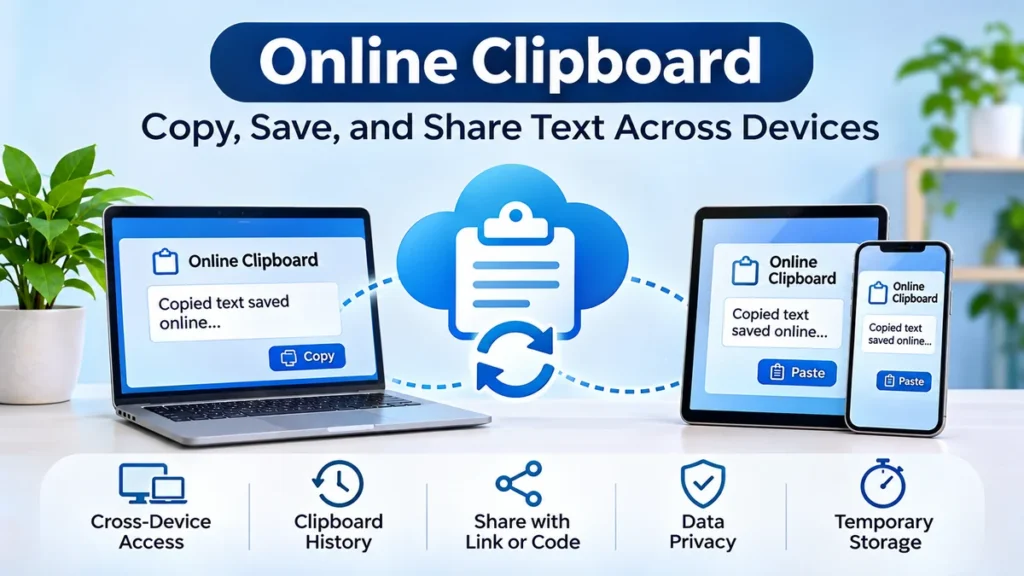
Copying a piece of text on your phone and trying to paste it on your computer should be simple. Yet the standard copy-and-paste function often stops working the moment you switch devices.
An online clipboard solves this problem by providing a convenient way to store, access, and transfer copied content through a web browser or synchronized application.
An online clipboard is a web-based tool that lets users temporarily save copied text, links, code, or other supported content and retrieve it later. Depending on the service, it can work across browsers and devices through cloud synchronization, shared links, accounts, or temporary access codes.
Unlike a traditional clipboard, which typically stores copied information locally, an online clipboard can make content available across multiple devices. However, not every online clipboard provides automatic synchronization, encryption, or permanent storage.
What Is an Online Clipboard?
An online clipboard is a digital storage and transfer tool that allows users to save information and access it through the internet.
When you copy text using Ctrl+C on Windows or Command+C on macOS, the operating system usually places that information in its local clipboard. You can then paste it into another compatible application.
The limitation is that the information generally remains within the same device unless a clipboard-sharing feature is enabled.
An online clipboard provides an alternative by storing content in a web service or synchronizing it through a connected account.
For example, imagine finding a useful website address on your smartphone while working on a research project. Instead of emailing yourself the link, you could save it to a browser-based clipboard and retrieve it on your laptop.
How an Online Clipboard Differs From a Regular Clipboard
| Feature | Traditional Clipboard | Online Clipboard |
|---|---|---|
| Storage | Usually local device memory | Browser, server, or cloud |
| Internet required | No | Usually for sharing or synchronization |
| Cross-device access | Requires compatible integration | Available on supported services |
| Content history | Depends on operating system | Depends on the tool |
| Sharing | Generally manual | May support links or codes |
| Privacy | Primarily controlled locally | Depends on service security |
| Storage duration | Often temporary | Varies by provider |
The most significant difference is accessibility. A local clipboard is designed for immediate copying and pasting, while a web-based clipboard can make the same information accessible elsewhere.
How Does an Online Clipboard Work?
The basic process involves copying content, saving it to a supported service, and retrieving it when needed.
Although individual platforms work differently, most follow a similar sequence.
Step 1: Copy Your Content
Select the information you want to transfer. This might include a paragraph, website URL, email address, programming snippet, or short note.
On a computer, use Ctrl+C or Command+C. On a smartphone, select the text and tap Copy.
Step 2: Open an Online Clipboard
Visit a browser-based clipboard service or open an application that supports cloud clipboard synchronization.
Some platforms provide a simple text editor where you paste the content manually. Others synchronize copied items automatically after you enable the relevant permissions.
Step 3: Save or Synchronize the Information
Paste your copied text into the online tool and follow its saving process.
Depending on the service, your information may be associated with an account, a unique URL, a temporary sharing code, or a synchronized clipboard history.
Step 4: Access It on Another Device
Open the same service on your second device.
You may need to sign in, enter an access code, or open a shared link.
Once the saved content appears, select and copy it into the destination application.
Step 5: Remove Information You No Longer Need
Delete saved content when it is no longer necessary, particularly when it contains personal or work-related information.
Remember that deleting an item from a visible interface does not necessarily guarantee immediate removal from server backups.
Types of Online Clipboard Tools
Not all clipboard tools work the same way. Understanding their differences helps explain why some require an account while others work directly in a browser.
Browser-Based Clipboard Tools
These tools operate through a website without requiring a dedicated desktop application.
Users typically paste text into an editor and save it for later access.
Some services generate a unique sharing link, while others use a temporary code to retrieve stored information.
Browser-based clipboards are particularly useful for transferring short notes, URLs, and code snippets between devices.
However, users should check whether saved content is publicly accessible to anyone possessing the link.
Cloud Clipboard Synchronization
Cloud synchronization services connect multiple devices through the same user account.
For example, Microsoft’s Windows clipboard supports clipboard history and optional synchronization features, depending on the Windows version and settings.
Apple provides Universal Clipboard through its Continuity ecosystem, allowing supported Apple devices to copy and paste content between one another when the necessary requirements are met.
These systems differ from public web-based clipboard websites because they integrate directly with operating systems.
Temporary Text-Sharing Services
Temporary text-sharing services provide a convenient way to transfer information without setting up continuous synchronization.
A user saves text, receives a retrieval link or code, and opens it on another device.
Some services automatically expire saved content after a certain period.
Expiration can reduce long-term exposure, but it does not automatically make a service private or secure.
Clipboard Managers
Clipboard managers extend ordinary copy-and-paste functionality by keeping a history of copied items.
They may support searching, organizing, pinning, or reusing frequently copied text.
Some clipboard managers operate entirely offline, while others offer optional synchronization.
Therefore, a clipboard manager is not necessarily an online clipboard.
Key Features of an Online Clipboard
The features available depend on the service, but several capabilities make online clipboards particularly useful.
Cross-Device Copy and Paste
Cross-device access allows users to move text between smartphones, tablets, laptops, and desktop computers.
For example, a student might copy a research reference on an Android phone and paste it into a document on a Windows laptop.
Some services support real-time synchronization, while others require users to retrieve saved content manually.
Clipboard History and Search
Clipboard history lets users revisit previously copied information rather than losing it when something new is copied.
Advanced clipboard managers may offer searchable history, pinned snippets, timestamps, and categorized collections.
This is useful for developers, researchers, and writers who regularly reuse small pieces of information.
Temporary Storage and Automatic Expiration
Some web-based clipboard services automatically remove saved content after a specified period.
For instance, WebClipboard describes configurable expiration periods and a feature that removes shared text after its first retrieval. WebClipboard
Temporary storage is helpful for short transfers, but expiration policies should be verified before relying on them.
Sharing Through Links, Codes, and QR Codes
Instead of logging into the same account on every device, certain platforms let users retrieve text through a link, numeric code, or QR code.
This can simplify sharing between devices that use different operating systems.
A QR code is particularly convenient when transferring text from a desktop browser to a smartphone.
Support for Different Content Formats
Although plain text is the most common format, some online clipboard services support additional content types:
- Website links and URLs
- HTML and formatted text
- Programming code
- Images and screenshots
- Documents and small files
- Notes and reusable text snippets
Support for these formats is not universal. A text-only clipboard may remove formatting or reject uploaded files entirely.
How to Use an Online Clipboard Across Devices
The appropriate method depends on the devices involved and whether you prefer a browser-based solution or built-in synchronization.
Copy and Paste Between Windows Computers
Windows 11 includes clipboard history and optional cross-device synchronization.
To enable it:
- Press Windows + V to open clipboard history.
- Select the option to enable clipboard history if prompted.
- Open Settings → System → Clipboard.
- Enable clipboard synchronization across devices.
- Sign in with the appropriate Microsoft account on supported computers.
- Select automatic or manual synchronization where available.
Microsoft documents a clipboard history limit of 25 entries and a maximum of 4 MB per item. Older unpinned entries are removed as new ones are added. Microsoft Support
Clipboard history and cloud synchronization are related but separate features. Enabling history alone does not necessarily activate cross-device sharing.
Copy and Paste Between iPhone and Mac
Apple’s Universal Clipboard allows supported iPhones, iPads, and Macs to share copied content through Continuity.
The feature generally requires compatible devices, the same Apple Account, Wi-Fi, Bluetooth, and Handoff to be enabled.
Once configured, users can copy content on one Apple device and paste it on another nearby device.
Universal Clipboard is designed for short-term transfers rather than maintaining a permanent, searchable clipboard archive.
Copy and Paste Between Android and PC
Android and Windows do not provide one universally available clipboard-sharing system across all devices.
Possible approaches include a compatible keyboard or device-integration feature, a third-party synchronization application, or a browser-based clipboard.
For occasional transfers, the browser method is often straightforward:
- Open a web clipboard on the Android phone.
- Paste the text into its editor.
- Save the content and obtain the retrieval link or code.
- Open the service on the computer.
- Retrieve and copy the saved text.
This method avoids relying on a particular combination of phone manufacturer, keyboard, and desktop operating system.
Copy and Paste Between Different Operating Systems
A browser-based clipboard can bridge Windows, macOS, Linux, Android, iOS, and ChromeOS when the service supports those platforms.
For example, SharedClipboard describes a browser-based system that connects devices using a QR code or access code and supports encrypted sharing of text and other content. SharedClipboard
The advantage is that users can transfer information without needing identical operating systems.
Is an Online Clipboard Safe to Use?
An online clipboard can be safe for ordinary text transfers, but its security depends on how the service stores, transmits, and protects information.
A website using HTTPS provides transport encryption between the browser and server. However, HTTPS alone does not mean the service provider cannot read stored clipboard content.
Understanding Clipboard Privacy
Three common security models are worth distinguishing.
| Security model | How it works | Main consideration |
|---|---|---|
| Public or link-accessible storage | Content is retrievable through a URL or code | Anyone with access credentials may retrieve it |
| Account-protected storage | Content is associated with an authenticated user | Account security and provider policies matter |
| End-to-end encryption | Content is encrypted so only authorized endpoints can decrypt it | Key handling and implementation are critical |
End-to-end encryption can provide stronger confidentiality, but users must still trust the software implementation and protect access links or keys.
What Should You Avoid Copying Into Public Clipboard Tools?
Avoid placing highly sensitive information into an unfamiliar online clipboard, including passwords, recovery codes, banking credentials, private authentication tokens, confidential business records, or personal identity documents.
Even if a service promises automatic deletion, there may be additional considerations involving backups, access logs, browser history, or unauthorized access.
For sensitive material, use an appropriate encrypted sharing system or password manager instead.
How to Check Whether a Clipboard Website Is Trustworthy
Before using a new service, examine its privacy policy, data retention rules, encryption claims, and deletion controls.
Also check whether the clipboard can be accessed by anyone who knows its URL or code.
A short access code should not be treated as equivalent to a strong password. Services with limited code combinations need additional safeguards against guessing and unauthorized retrieval.
Online Clipboard vs. Notes Apps and Cloud Storage
Online clipboards overlap with note-taking applications and cloud storage, but their intended uses differ.
| Tool | Best use | Typical limitation |
|---|---|---|
| Online clipboard | Quick text transfers | May have limited storage or expiration |
| Notes app | Organizing reusable information | Requires more deliberate organization |
| Cloud storage | Saving documents and files | Can be excessive for a short text snippet |
| Clipboard manager | Reusing copied items | Cross-device access may be unavailable |
| Email or messaging | Sending content to another device or person | Creates additional copies and message history |
For transferring a short URL, an online clipboard is often more convenient than uploading a document.
For keeping research notes over several months, a dedicated notes application is usually a better choice.
For moving large files, a file-transfer or cloud-storage service may be more appropriate.
The key distinction is that a clipboard is primarily a transfer and reuse mechanism, not a dependable long-term backup system.
Common Uses of an Online Clipboard
Students and Researchers
Students frequently move references, quotations, article URLs, and notes between devices.
A web clipboard can simplify this process when research happens on a phone but assignments are completed on a computer.
However, important research notes should eventually be transferred to a reliable document or reference-management system.
Writers and Content Editors
Writers often work with headlines, outlines, draft paragraphs, and reference links.
Clipboard history can help recover previously copied passages and reduce repetitive copying.
When transferring content into a publishing platform, checking the pasted formatting is essential because some clipboard tools preserve only plain text.
Software Developers
Developers regularly copy code snippets, command-line instructions, configuration examples, and debugging messages.
A cross-device clipboard can help transfer non-sensitive code between a workstation and a testing environment.
Care is needed with environment variables, API keys, session tokens, and production configuration files, which may contain credentials.
Office Workers and Remote Teams
An online clipboard can simplify moving meeting notes, standard responses, or non-confidential information between devices.
However, a shared clipboard should not be mistaken for a collaborative document system.
If multiple people need editing permissions, revision history, or controlled access, a dedicated collaboration platform is generally more suitable.
Why Is My Online Clipboard Not Working?
Clipboard failures usually involve browser permissions, connectivity, expired sessions, unsupported formats, or synchronization settings.
Copied Text Does Not Appear
First, verify that the content was actually copied.
Try pasting it into a local text editor. If it appears there, the original copy operation worked.
Next, check whether the online service requires you to paste and save the content manually.
Many browser-based clipboards do not automatically detect everything copied on your device.
Browser Clipboard Permission Is Blocked
Modern browsers restrict clipboard access to protect users from unauthorized reading or modification.
The Clipboard API commonly requires a secure context, such as HTTPS, and may require user interaction or permission.
If a website cannot read the clipboard, manually paste the content into its text field.
Also check site permissions and whether a browser extension is interfering with clipboard operations.
Clipboard Is Not Synchronizing
When synchronization fails, check the internet connection on both devices and confirm that both are connected to the correct account, session, or sharing space.
If using Windows clipboard synchronization, verify that the relevant setting is enabled.
If using a temporary web clipboard, check whether the sharing session has expired.
Formatting Disappears After Pasting
Some tools support plain text only.
As a result, copied content may lose font styles, tables, hyperlinks, colors, or HTML formatting.
For rich-text transfers, use a clipboard service that explicitly supports formatted content or transfer the original document.
Saved Content Has Disappeared
Clipboard content may disappear because of an expiration timer, storage limit, browser reset, manual deletion, or session termination.
For example, tmps.fyi describes temporary shared spaces that expire after an inactivity period following the departure of the last connected device. Copy Paste Across Devices – tmps.fyi
Never rely on temporary clipboard storage as the only copy of important information.
Best Practices for Using an Online Clipboard
A few practical habits can make clipboard sharing more reliable and reduce unnecessary exposure.
- Use a trusted service. Review its privacy and retention policies before storing information.
- Choose the right content format. Confirm whether the tool supports plain text, rich text, images, or files.
- Keep sensitive information separate. Avoid sharing passwords and confidential records through public clipboard links.
- Check expiration settings. Make sure the content will remain available long enough to retrieve it.
- Verify copied content. Check that URLs, code formatting, and special characters remain intact.
- Remove temporary information. Delete clipboard items when they are no longer required.
- Maintain permanent copies elsewhere. Use documents, notes, or secure storage for important material.
These practices are especially useful when moving content between personal and work devices.
Can You Create Your Own Online Clipboard?
A basic online clipboard can be built using HTML, CSS, JavaScript, and a suitable storage or synchronization system.
The browser’s Clipboard API provides functionality for interacting with clipboard content, subject to browser security requirements.
A simple implementation might include a text input area, a Copy button, a Save button, and a retrieval mechanism.
For cross-device access, the application needs a way to transfer content between devices, such as a backend server, cloud database, or peer-to-peer connection.
Important Technical Components
A more complete implementation may use:
- Clipboard API: To read or write clipboard content where permitted.
- HTTPS: To protect information during transmission.
- WebSockets: To support real-time updates between connected devices.
- Database or temporary storage: To hold saved clipboard items.
- Authentication or access codes: To restrict access to shared content.
- Encryption: To protect content according to the application’s security design.
- Expiration controls: To remove temporary records after a defined period.
Using browser localStorage alone is insufficient for true cross-device synchronization because localStorage is normally limited to the browser environment where it was created.
A secure implementation also needs appropriate input handling, access controls, rate limiting, and safeguards against cross-site scripting.
Does an Online Clipboard Work Without Internet?
A genuinely web-synchronized clipboard generally needs an internet connection to transfer content through its remote service.
Some applications maintain local clipboard history while offline and synchronize changes after connectivity returns.
Others transfer data directly between devices over a local Wi-Fi network without using a cloud server.
For example, AnyPaste describes local-network clipboard synchronization between paired devices. Your clipboard, on every device
This differs from a browser-based online clipboard that depends on an external server.
The distinction matters when working in locations with limited connectivity or strict data-handling requirements.
How Long Does an Online Clipboard Store Data?
There is no universal storage duration for online clipboard services.
Some platforms delete content after minutes or hours, while others retain information until a user removes it.
A clipboard manager may keep history locally for an extended period, subject to its settings and storage capacity.
Temporary services may offer one-time retrieval, inactivity-based expiration, or configurable deletion schedules.
Users should read the provider’s documentation rather than assuming that closing a browser tab automatically deletes stored content.
Final Thoughts on Using an online clipboard
An online clipboard makes copying and sharing text between devices more convenient, especially when ordinary copy-and-paste functionality is limited to one computer or smartphone.
Browser-based clipboard tools are useful for quick transfers, while operating-system synchronization and dedicated clipboard managers may be better for frequent use.
The most important considerations are device compatibility, content format, privacy, storage duration, and ease of retrieval.
For everyday notes, links, and non-sensitive snippets, an online clipboard can save time and simplify your workflow. For confidential information or long-term storage, choose a more appropriate secure solution.